Topics Covered:
Helpful tools for this guide
You open a long webpage, know the term you need is somewhere inside it, and waste minutes scrolling. There's a faster way. If you need to search keywords on a webpage, start with your browser's built-in Find feature — and as of 2026, that feature is quietly getting smarter. For deeper SEO checks, you'll also want to search an entire site, inspect the page source, and measure keyword repetition before you publish.
Why does a browser shortcut belong on a text-tools site? Because finding a keyword and optimizing for one are different skills, and content writers need both. Once Ctrl+F shows you every place a phrase appears, the natural next step is checking whether you've used it too often. That's exactly what the Keyword Density Checker is built for. This guide covers all of it: finding text fast — the old way and the newer AI-assisted way — and measuring it properly before you publish.
Table of Contents
- Quick answer
- What does searching webpage keywords mean?
- Use Ctrl+F or Command+F
- Search keywords on a phone
- How AI is changing Find on Page in 2026
- Search an entire website with Google
- Check keywords in page source
- Measure keyword frequency
- Which method should you use?
- Common mistakes
- FAQs
- Final takeaway
Quick Answer
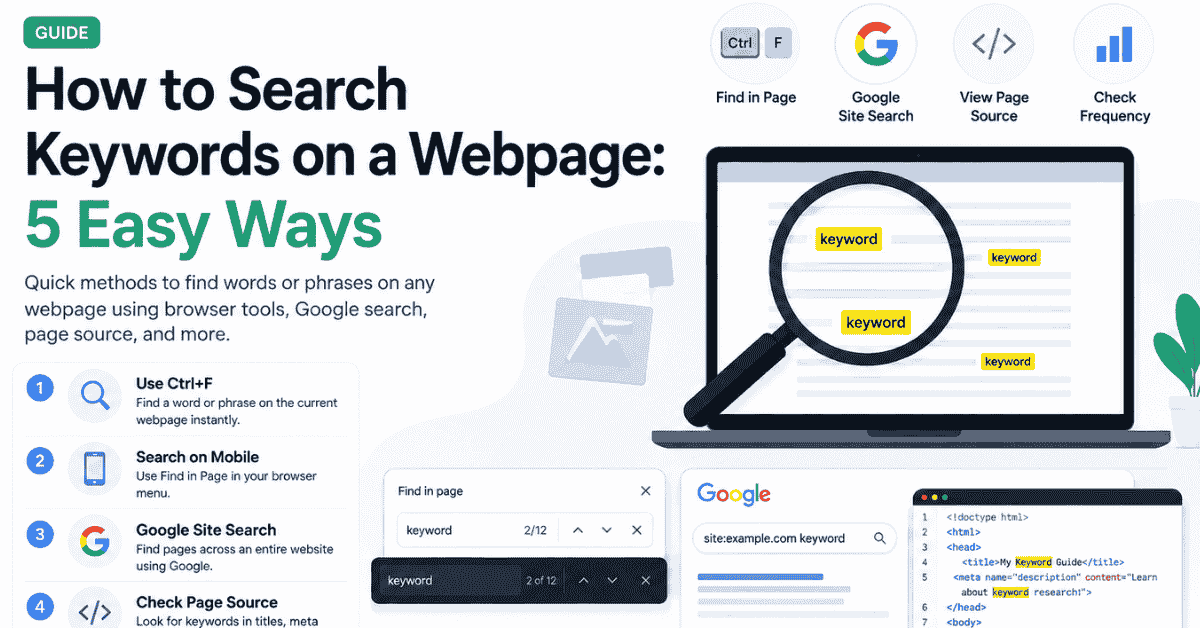
Press Ctrl+F on Windows, Linux, or ChromeOS, or Command+F on Mac. Type the word or phrase into the Find box and your browser highlights every match on the current page. Chrome also shows how many matches it found and marks their locations along the scrollbar.
For an entire website, use Google's site: search operator. For SEO analysis, go a step further and check the page source, or run the text through a Keyword Density Checker to see how often important words and phrases actually appear.
One thing worth knowing before you start: as of 2026, this shortcut isn't as “dumb” as it used to be in every browser. Microsoft Edge now builds AI directly into Find on page, so it can locate a term even if you misspell it. More on that below.
Quick rule: use browser search to find a term, use a density checker to measure repetition, and use Search Console to see what your own page actually earns impressions for.
What Does Searching Keywords on a Webpage Actually Mean?
People usually mean one of two things. First, you may simply want to locate a specific word or phrase inside a long article, product page, documentation page, or report. A browser search solves that in seconds.
SEO users often mean something different. They want to know where a target phrase appears, how often it appears, or whether it sits in important spots like the title or headings. Finding a word on a page doesn't tell you what that page actually ranks for in Google — that requires search-performance data.
1. Use Ctrl+F or Command+F on a Desktop
The fastest way to search a page is your browser's built-in Find command. Press Ctrl+F on Windows or Command+F on Mac, enter the term, then use Enter or the arrows to move through each match. Chrome highlights every matching occurrence and shows you how many there are.
This works well when you need to find a statistic, product name, heading, quotation, or repeated phrase on one page. Firefox also offers Match Case and Whole Words options, which help when a short term appears inside longer words.
Exact Word vs Partial Match
Suppose you search for rank. A normal search will also match that letter sequence inside ranking. If you need the exact word, use a whole-word option where available, or search for a longer phrase that removes the ambiguity.
2. Search Keywords on a Webpage Using Your Phone
You don't need a desktop for this. On Chrome for Android, open the page, tap the three-dot menu, choose Find in page, and enter your search term. Chrome highlights the matches and shows markers so you can jump between them.
Safari and Chrome on iPhone offer the same thing through a Find on Page option in their share or browser controls. It's handy when you're checking a long guide, a pricing page, or documentation away from your computer.
Why Mobile Search Sometimes Misses Text
A browser can only find text that's actually loaded as page content. Words inside images won't show up, and on infinite-scroll pages or sections that load as you scroll — common on both mobile and desktop — content further down the page may not exist in the DOM yet, so Find won't see it until you've scrolled that far.
3. How AI Is Changing “Find on Page” in 2026
Plain Ctrl+F has one real weakness: it only matches the exact string you type. Misspell a word, or use a synonym the page doesn't happen to use, and you get zero results even though the information is sitting right there. Browsers are starting to fix that.
Microsoft Edge now ships an AI-powered version called Smart Find. Instead of matching only your literal text, it suggests related matches and synonyms, and it can still find what you're looking for even if you misspell the search term — you just select the suggested match instead of retyping.
Chrome hasn't shipped an identical feature, but its AI Mode update, rolled out in April 2026, changes the workflow a different way. You can open a page in a side-by-side view and ask Chrome's built-in AI a direct question about it — “where does this page mention the refund window?” — instead of guessing the exact phrase to search for.
There's also a shortcut most people never notice: Chrome's address bar can search the page you're currently on directly. Start typing your term and look for the magnifying-glass suggestion instead of opening the Find in Page menu at all. And if you want natural-language, AI-assisted page search on Chrome today, a handful of extensions already offer it — letting you ask a plain-English question about a page instead of guessing keywords.
None of this replaces the density check you need before publishing, though. AI-assisted find is about locating information faster as a reader. Measuring how often you've used a phrase, so your own writing doesn't read as over-optimized, is a separate job — that's what the Keyword Density Checker section below is for.
4. Search an Entire Website with Google
Ctrl+F only searches the page currently open. If you want every indexed page on a site that mentions a topic, use Google's site: operator.
For example:
site:example.com keyword
For an exact phrase:
site:example.com "content strategy"
Google officially documents both the site: operator and quotation marks for exact-phrase searches. You can also place a minus sign before a word to exclude unwanted results.
This works well for content audits, internal-link research, finding outdated terminology, and checking whether your own site already covers a topic before you write something new.
Important: Google site search only shows indexed results. It's not a complete crawl of every URL or file on a website.
5. View Page Source to Check SEO Keyword Placement
Visible text is only part of a webpage. If you're checking SEO placement, you also want to know whether a term appears in the title tag, meta description, headings, or other HTML elements.
On most desktop browsers, open the page source and use Ctrl+F again. Search for the keyword itself, or look for tags such as:
<title><meta name="description"><h1><h2>
This gives you a fast read on where the wording actually sits — in the title where it counts, or buried three paragraphs down where it barely helps your rankings.
What Page Source Cannot Tell You
Page source can show keyword placement, but it can't tell you what queries actually generate clicks or impressions. For your own website, Google Search Console is the better source for real query data. Searching HTML and checking rankings are different tasks, and mixing them up can lead to bad SEO decisions.
6. Measure Keyword Frequency Instead of Counting Manually
Ctrl+F can tell you a word appears several times, but it isn't built for a full repetition audit. Before you publish an article, paste the text into the Keyword Density Checker.
CountFlows checks word and phrase frequency, which matters because repetition problems usually show up in two- or three-word phrases rather than single words. The tool is built to catch over-optimization before you hit publish, and the processing stays in your browser.
For example, a 1,500-word SEO article may naturally use the word keyword many times. But repeating the same long phrase in every heading and paragraph can sound forced even when the individual words look fine on their own.
Don't chase a magic density percentage. Use the numbers to spot obvious repetition, then edit for clarity and natural wording.
Keyword Search vs Keyword Density
These checks answer different questions.
| Question | Best method |
|---|---|
| Where does this word appear? | Ctrl+F |
| Can it find a term even if I misspell it? | AI-powered Find (Edge Smart Find, or an AI browser extension) |
| How many times does it appear? | Browser Find or a density checker |
| How often does it appear relative to the text? | Keyword Density Checker |
| Is it in the title or meta description? | Page source |
| Which pages on a site mention it? | Google site: search |
| Which queries bring impressions? | Google Search Console |
If you want the full formula and a detailed workflow, read How to Check Keyword Density of Any Web Page.
Which Method Should You Use?
Pick the method based on the size of the job. A browser shortcut is best for one page, Google site search works better across several indexed pages, page source helps with SEO placement, and a density tool handles repetition. AI-powered find is worth reaching for when you're not even sure of the exact wording you're looking for.
For content teams, these work even better together: search the site first, open the relevant page, locate the term, check its HTML placement, then review frequency before publishing.
| Goal | Recommended method |
|---|---|
| Find one term quickly | Ctrl+F / Command+F |
| Search on mobile | Find in Page |
| Find a term you might be misspelling | AI-powered Find (Edge Smart Find) |
| Search a whole domain | Google site: operator |
| Inspect SEO locations | View page source |
| Check repetition | Keyword Density Checker |
A Practical SEO Workflow
Say you're updating an article about email marketing. Start with Google site search to find pages that already mention the topic. Open the most relevant result and use Ctrl+F to see where the phrase appears.
Next, inspect the title and headings if placement matters. After editing, run the text through the density checker to catch repeated wording. You can also use the Word Counter to check overall length, and Text Compare to see exactly what changed between the old and revised drafts.
If the article started as AI-generated text, run it through the AI Text Cleaner to remove unwanted formatting before your final SEO check.
Common Mistakes When Searching for Keywords
The biggest mistake is assuming that a phrase appearing many times means a page is better optimized. Search visibility depends on far more than literal repetition — Google Search Central is explicit that it wants content that's useful, understandable, crawlable, and relevant to users, not just keyword-dense.
Another common mistake is treating site: results as a complete index of your website. Google may not show every page. And don't expect Ctrl+F to reveal ranking keywords, search volume, or competitor traffic — it's a text-finding feature, not a rank tracker.
Frequently Asked Questions
What is the easiest way to find a keyword on a webpage?
Press Ctrl+F on Windows or Command+F on Mac. Type the word you want to find, and your browser shows every match on the page.
How can I find keywords on a webpage using my phone?
Open your browser menu and select Find in Page. Enter the word or phrase, then move through the matches shown on screen.
How do I search for a keyword across a whole website?
Use Google and type:
site:example.com keyword
For an exact phrase, place it inside quotation marks.
Is there an AI version of Ctrl+F?
Yes. Microsoft Edge's Smart Find suggests related matches and synonyms and can still find a term even if you misspell it. Chrome doesn't have an identical built-in feature yet, but its AI Mode lets you ask direct questions about a page instead of manually searching for a phrase.
Will AI page search replace keyword density checking?
No. AI-assisted find helps you locate information faster as a reader, but it won't tell you whether you've repeated a phrase too often in your own writing. That's still a separate check before you publish.
Does Ctrl+F show keyword density?
No. Ctrl+F only helps you find where a term appears. A keyword density checker shows how often the term appears relative to the total text.
How can I see which keywords my page ranks for?
Use Google Search Console for your own website. It shows the queries that generate impressions and clicks for each page.
Can I find keywords in a webpage's source code?
Yes. Open the page source and use Ctrl+F. This helps you check whether a term appears in the title, meta description, headings, or other HTML.
Should I repeat a keyword many times for SEO?
No. Use important terms where they make sense. Repeating the same phrase too often makes content harder to read and can look over-optimized.
Final Takeaway
If you only need to find a word on one page, Ctrl+F or Command+F is still the fastest option — and in browsers like Edge, it's now smart enough to handle a typo. On a phone, use the browser's Find in Page feature.
For SEO work, you'll usually need more than a simple search. Google's site: operator helps you find pages across a website, and page source shows where a term sits in the HTML that actually matters for rankings.
Knowing how to search keywords on a webpage helps you find terms quickly — but it won't tell you if you're using them too much. Once you've found them, check their frequency with the Keyword Density Checker and edit any wording that feels repeated or unnatural.
Related Articles
Continue with closely related CountFlows guides.
SEO & Content
SEO Content Writing: The 2026 Guide to Ranking on Google
A practical SEO content writing guide covering keyword research, search intent, E-E-A-T, content length data, on-page SEO, and AI search visibility.
SEO & Content
How Long Should a Blog Post Be? A Practical 2026 Guide
There is no universal ideal blog post length. The right word count depends on search intent, topic complexity, audience needs, and how much useful information the post requires.
SEO & Content
How to Check Keyword Density: Formula, Examples & Tool
Calculate keyword frequency correctly, understand why tools can show different percentages, and use a practical repetition audit instead of chasing an arbitrary SEO target.