Topics Covered:
Helpful tools for this guide
Table of Contents
- Quick Answer: How to Check Word Count in Google Docs
- How to Check Word Count on Google Docs (Desktop/Laptop)
- Step 1: Open Your Document
- Step 2: Go to the Tools Menu
- Step 3: Click on Word Count
- Alternative Step 3: Use Keyboard Shortcuts
- Step 4: View the Word Count Details
- How to Check Word Count for Selected/Highlighted Text
- Step 1: Highlight the Desired Text
- Step 2: Open Tools > Word Count
- Step 3: View the Word Count for Selected Text
- How to Check Word Count in Google Docs on Mobile (Android and iPhone)
- How to Check Word Count on Android
- How to Check Word Count on iPhone/iPad
- How to See Word Count Using a Real-Time Counter
- What's Included and Excluded in the Word Count?
- Why AI-Generated Text Can Throw Off Your Word Count
- What to Do If "Word Count" Option Is Missing in Google Docs
- Estimated Reading Time Based on Word Count
- Why Knowing Your Word Count Is Useful for Writers
- FAQs
- Conclusion
Checking your word count in Google Docs means discovering exactly how many words your document has. It is a quick task that only takes a few clicks, but the exact steps change slightly depending on whether you're on a laptop, a phone, or working with a portion of text instead of the whole document. This guide covers every method, what Google Docs actually counts (and what it silently skips), and a technical issue almost no other guide mentions: why pasted AI-generated text often throws your word count off. Want an even faster way to check any text you paste in? Try our free Word Counter Tool to check word count instantly without opening Google Docs.
Quick Answer: How to Check Word Count in Google Docs
Open your document, click Tools > Word count, or press Ctrl+Shift+C (Windows/ChromeOS) or Cmd+Shift+C (Mac). A pop-up shows your page, word, character, and character-without-spaces counts. Tick Display word count while typing to keep a live counter in the lower-left corner as you write.
- Desktop: Tools > Word count, or Ctrl/Cmd+Shift+C
- Selected text only: Highlight the text first, then open Word count the same way
- Android/iOS app: Tap the three-dot menu (⋮) > Word count
- Live count while typing: Word count dialog > check "Display word count while typing"
- Pasted AI text looks miscounted? Run it through an AI Text Cleaner first to strip invisible characters before pasting
How to Check Word Count on Google Docs (Desktop/Laptop)
If you want to check word count in Google Docs on a desktop or laptop, it becomes very easy once you know exactly how to do it. This feature lives in the Tools menu, which takes only a minute to locate. Whether you're working on a school assignment or writing a blog post, this keeps things on track.
And here's the good news: you don't need any third-party apps or browser extensions to access this feature. Just follow these steps.
Step 1: Open Your Document
Before learning how to show word count on Google Docs, go to Google Docs and select the file you wish to examine. You can do this from your recently opened files, through Drive, or by using a saved link.
Step 2: Go to the Tools Menu
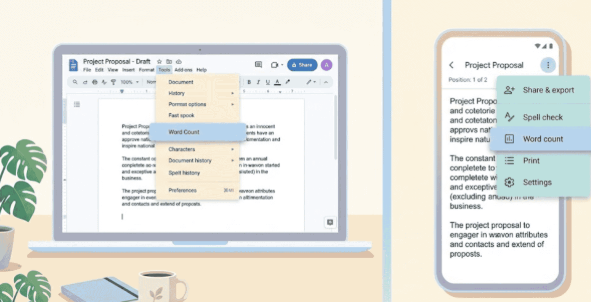
Look toward the upper part of the screen; you'll see the "Tools" tab in the menu bar. Click on it, and a drop-down list with multiple options appears. All the useful built-in tools in Google Docs live here.
Step 3: Click on Word Count
From the drop-down list, choose "Word Count." This option typically sits near the top of the list. A small pop-up window will immediately appear on your screen.
Alternative Step 3: Use Keyboard Shortcuts
You can skip the Tools menu entirely by pressing Ctrl+Shift+C on Windows or ChromeOS, or Cmd+Shift+C on Mac. This opens the same word count pop-up instantly and works whether or not you have text selected.
Step 4: View the Word Count Details
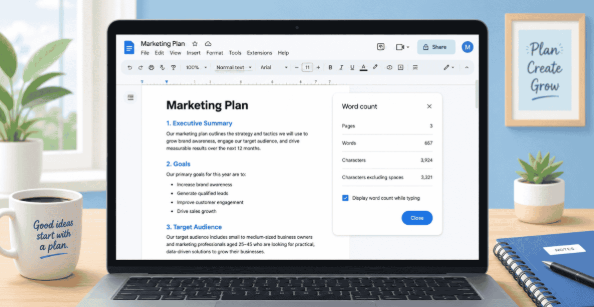
The pop-up shows the total number of pages, words, characters, and characters excluding spaces. If you want to keep tracking word count in Google Docs while typing, check the box labeled "Display word count while typing."
How to Check Word Count for Selected/Highlighted Text
Step 1: Highlight the Desired Text
Highlight the section you want a word count for by clicking and dragging your mouse pointer across it. This could be a few sentences, one or several paragraphs, or even several pages.
Step 2: Open Tools > Word Count
With your text still highlighted, click "Tools" at the top of the screen, then select "Word Count" from the dropdown. Don't worry if the highlighting seems to disappear for a second, Google Docs still remembers your selection.
Step 3: View the Word Count for Selected Text
A pop-up window opens showing the number of words and characters in the selected text only, displayed like "45 of 1,230," so you can compare the selected section against the whole document.
How to Check Word Count in Google Docs on Mobile (Android and iPhone)
Want to check word count in Google Docs while you're on the move? The mobile app makes it just as simple as the desktop version, once you know where the option is hiding.
How to Check Word Count on Android
Launch the Google Docs app and select the file you want to check. Tap the three vertical dots in the upper-right corner to open the drop-down menu. Choose "Word count," and the total will appear instantly.
How to Check Word Count on iPhone/iPad
The steps on iPhone and iPad are nearly identical to Android. Open the document in the Google Docs app, tap the three-dot menu button in the upper-right corner, select "Word count," and a small window shows your results. For selective counting, highlight the text first, exactly as on Android.
How to See Word Count Using a Real-Time Counter
- Use the keyboard shortcut: Press Ctrl + Shift + C on Windows or Command + Shift + C on Mac to open the word count pop-up instantly. Tick "Display word count while typing" to pin it to your screen.
- Try a browser extension: Install a word count extension from the Chrome Web Store, enable it, and it shows live counts as you write; no need to open the Tools menu at all.
- Keep the pop-up open: Once enabled, the live counter sits quietly at the bottom-left of your screen, updating with every word you add or delete.
- Works for selections too: Highlight any text, and the live counter shows you the count for just that section alongside the total.
What's Included and Excluded in the Word Count?
Your Google Docs word count includes most of your words, but not everything is counted. According to Google's own documentation, unless you select a specific section, the word count applies to everything in the document except headers, footers, and footnotes. This is because the counter is built to measure your main body text, the content that actually flows through the document, rather than repeating structural elements like a header that appears on every page or reference material sitting outside the main flow.
The counting logic itself has a few quirks worth knowing before you rely on it for a strict limit:
| Text Element | Counted as | Example |
|---|---|---|
| Hyphenated word | 1 word | "well-known" = 1 word |
| Contraction | 1 word | "don't" = 1 word |
| Number or year | 1 word | "2026" = 1 word |
| Email address or URL | 1 word | "name@email.com" = 1 word |
| Header, footer, footnote text | Not counted | Page headers are excluded from the total |
| Comments and suggestions | Not counted | Open comments don't add to the body word count |
This matters more than it sounds. If your brief asks for "exactly 1,000 words," a document full of hyphenated compound terms or long URLs will read fewer "real" words than the count suggests, since each one only registers as a single unit.
Why AI-Generated Text Can Throw Off Your Word Count
This is the part most word count guides skip entirely. If you draft with ChatGPT, Claude, or another AI tool and then paste the output into Google Docs, your word count can come out wrong, sometimes noticeably so. This happens for a few technical reasons:
- Non-breaking spaces: AI outputs and web copy-paste often carry invisible non-breaking spaces instead of regular spaces. Google Docs can merge or miscount words separated this way.
- Smart quotes and em dashes: Curly quotes (" ") and em dashes (—) pasted from a chat interface sometimes attach to the neighboring word without a normal space, which changes how the word boundary is read.
- Hidden formatting characters: Copy-pasted AI text can carry zero-width characters or leftover markdown symbols (like stray asterisks for bold) that aren't visible but still sit inside the text.
- Joined words from list formatting: When AI-generated bullet points or numbered lists are pasted without clean line breaks, two words can merge into one, quietly lowering your count.
The practical fix is to clean the text before it ever reaches your document, not after you've already formatted it. Running pasted AI content through a dedicated AI Text Cleaner strips these invisible characters and normalizes spacing and punctuation, so the word count you see in Google Docs actually matches the real word count of your content.
| Scenario | Wrong Approach | Better Approach |
|---|---|---|
| Pasting ChatGPT/Claude output into Docs | Paste directly, then check word count and trust it | Clean the text first with an AI Text Cleaner, then paste and check |
| Hitting an exact word count target (e.g. 1,000 words) | Rely only on the header count, ignore hyphenated words and URLs | Cross-check with a plain-text tool if the document has many compound terms or links |
| Checking a footnote-heavy academic paper | Assume Tools > Word count includes footnotes | Remember footnotes are excluded, and count them separately if your requirement includes them |
What to Do If "Word Count" Option Is Missing in Google Docs
There are times when the word count feature doesn't seem to be available in Google Docs. You don't have to be alarmed; this happens fairly often.
First, try searching for the word count feature under the Tools menu again. If it's still not showing, use the keyboard shortcut instead: Ctrl+Shift+C for Windows or Command+Shift+C for Mac. If neither works, refreshing the page or updating the Google Docs app (on mobile) usually resolves it, since this is typically a temporary loading glitch rather than a missing feature.
Estimated Reading Time Based on Word Count
One more thing your word count helps you with is estimating how long a document takes to read. According to research on reading speed, people read an average of 200 to 250 words per minute. This means a 1,000-word essay would take roughly 4 to 5 minutes to read.
| Word Count | Estimated Reading Time (at 225 wpm) |
|---|---|
| 250 words | ~1 minute |
| 500 words | ~2.2 minutes |
| 1,000 words | ~4.4 minutes |
| 2,000 words | ~8.9 minutes |
| 5,000 words | ~22 minutes |
This has several practical uses. Writers use it to gauge the approximate reading time of a blog post or speech. Teachers use it to check whether an essay fits within a time limit for a class presentation.
Why Knowing Your Word Count Is Useful for Writers
Knowing your word count helps writers in many ways. Schools and universities set strict word limits for essays and reports. Job applications and grant proposals also follow tight word count rules. Checking it early saves you from last-minute stress.
Beyond rules, your word count shows your progress too. Bloggers use it to keep posts the right length for SEO. Writers track it daily to hit their goals. It's a small habit that makes writing projects much easier to manage.
FAQs
What does Ctrl+K do in Google Docs?
Ctrl+K doesn't show your word count, it opens the insert link tool instead. Use it to quickly add hyperlinks to your document.
How do I see word count while typing?
Open Tools > Word Count and tick "Display word count while typing." Your live count then appears at the bottom of the screen.
What is the shortcut for word count on Google Docs?
Press Ctrl + Shift + C on Windows or Command + Shift + C on Mac. This instantly opens the word count pop-up window.
Why is there no word count on Google Docs?
This is usually a temporary loading glitch, or an outdated app version. Try refreshing the page, updating the app, or switching to the browser version.
Does Google Docs count words inside footnotes or comments?
No. Footnotes, headers, footers, and open comments are excluded from the total word count, since the counter is designed to measure only your main body text rather than repeating or reference elements. You can still get their count by selecting that section on its own.
Why does my word count look off after pasting AI-generated text?
AI outputs often carry invisible non-breaking spaces, smart punctuation, or leftover markdown symbols that can merge words together. Cleaning the text first with an AI Text Cleaner before pasting usually fixes this.
Conclusion
Checking word count in Google Docs is really simple, and you can do it from any device. Doing so helps you track how much you've written, confirm you've hit a required limit, and estimate how long your document will take to read.
- Use Tools > Word Count or the keyboard shortcut Ctrl + Shift + C (Cmd + Shift + C on Mac)
- Highlight text to check the word count for a selected section
- On mobile, tap the three-dot menu and select "Word count"
- Turn on "Display word count while typing" for live updates
- If you've pasted AI-generated text, run it through an AI Text Cleaner first so your count reflects the real content
With these tips, you can easily manage your writing projects and stay on top of any word count requirement. Happy writing!
Related Articles
Continue with closely related CountFlows guides.
Other
Cover Letter Word Count: Exact Length That Gets Interviews
Discover the ideal cover letter length, word count guidelines by experience level, and proven tips to write a cover letter that gets noticed.
Other
Keyboard Shortcut for Word Count in Text, Docs & Vim
One-press shortcuts for word count across Word, Google Docs and Vim—how to view live counts and dialog boxes quickly.
Other
camelCase vs PascalCase vs snake_case: Key Differences
Learn the key differences between camelCase, PascalCase, snake_case, and kebab-case, with practical examples and common programming uses.