Topics Covered:
Helpful tools for this guide
Most writers don't realize how much time slips away just checking their text length the slow way. You are deep in a sentence, ideas are flowing, and suddenly you stop, grab the mouse, dig through menus, and just like that, the momentum is gone. A keyboard shortcut for word count fixes this instantly. One press and the number appears right in front of you—no clicking, no detour, and absolutely no lost thought.
Whether you use Microsoft Word, Google Docs, or other platforms, tracking your progress should be seamless. If you prefer not to use shortcuts at all, you can always try our word counter for instant text analysis.
Table of Contents
- 1. Keyboard Shortcut for Word Count in MS Word
- 2. Status Bar vs. Dialog Box Comparison
- 3. Shortcut in Google Docs (Windows & Mac)
- 4. How to Display Live Word Count in Docs
- 5. Keyboard Shortcuts for a Specific Section
- 6. How to Get Word Count in Vim
- 7. Platform Comparison Table
- 8. Frequently Asked Questions
What Is the Keyboard Shortcut for Word Count in MS Word?
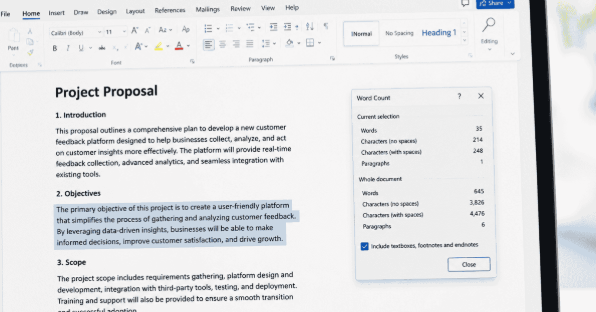
For most professionals using a Windows PC, the fastest way to get your statistics is simple. The word count keyboard shortcut in Microsoft Word is Ctrl + Shift + G. The moment you press this combination, the dialog box opens right away in the center of your screen.
This isn't just a simple number generator. You see total words, page numbers, character limits (both with and without spaces), total paragraphs, and line counts all together. There is absolutely no need to open the Review Tab every single time you want an update. If you use an Apple computer, the shortcut for Mac is essentially the same: just press Cmd + Shift + G instead.
How to Use Ctrl+Shift+G in Word 2007 and Later Versions
The beauty of this specific keystroke is its universal compatibility. Whether you are running the classic Word 2007, Word 2016, or the latest Microsoft 365, pressing Ctrl + Shift + G triggers the exact same highly detailed dialog box. However, if you are looking for a completely hands-free method, you can rely on the bottom tracker.
Right-click the status bar at the very bottom of your MS Word screen. Find the "Word Count" option in the list and click to turn it on. Now your live calculator stays visible the whole time you write. Just look down and you know exactly where you stand. You only need to press the keyboard shortcut when you require the full statistical breakdown.
Status Bar vs. Dialog Box Comparison
| Feature | Status Bar (Live) | Dialog Box (Ctrl+Shift+G) |
|---|---|---|
| Requires a Keystroke | No | Yes |
| Updates Live Automatically | Yes | No |
| Shows Total Words | Yes | Yes |
| Shows Page Count | Yes | Yes |
| Shows Character Limits | No | Yes |
| Shows Paragraphs & Lines | No | Yes |
| Analyzes Specific Selections | No | Yes |
How to Check Word Count in Google Docs Using a Shortcut
Ctrl+Shift+C Shortcut on Windows, Mac & Chromebook
Google's cloud-based platform operates differently. If you want to know how to check your limits using a keyboard shortcut on Google Docs, just press Ctrl + Shift + C on a Windows PC or a Chromebook. The keyboard shortcut for Mac users is Cmd + Shift + C instead. The dialog box opens instantly and displays your total length, current page details, and character count all in one clean popup.
How to Display Live Word Count While Typing in Google Docs
Similar to Microsoft Word, Google Docs also offers a live tracker so you don't have to keep pressing buttons. Go to the top Tools Menu and click on the text tracking option. A small box will appear. Check the tiny box that says "Display word count while typing" and hit OK. A small live tracker will now permanently appear at the bottom left of your page.
You can click that counter anytime to seamlessly switch between viewing your total words, page progress, or character limits. If you ever find it distracting and want to turn it off, simply click on it again and uncheck the display option.
Best Add-ons for Tracking Metrics in Google Docs
Sometimes the built-in tools just aren't enough. If you need deeper analytics, go to Extensions, then click Add-ons and select 'Get Add-ons'. Search for tools like Word Counter Max in the store and install it directly. These types of add-ons often provide a live sidebar displaying sentence numbers, paragraph metrics, and even readability scores.
Before publishing, if you are wondering how long a blog post should be for optimal SEO, you can try our free Reading Time Calculator. It helps you measure how long your content will actually take to read, giving you an instant analysis of your article's pacing.
Keyboard Shortcuts for a Specific Section or Selection
How to Check Selected Paragraphs in MS Word
Select any paragraph or specific chunk of text you want to measure in Microsoft Word by highlighting it with your mouse. Once highlighted, press Ctrl + Shift + G, and the dialog box will open right away. It intelligently detects your selection and shows the statistics exclusively for the highlighted text, ignoring the rest of the document.
Need to check a strict abstract limit for a research paper? Just highlight that specific section and hit the shortcut. It is the fastest way to verify academic constraints without pasting your text into an external browser.
Counting Selected Text in Google Docs
The process is identical for Google users. First, select the text that you want to analyze in your Google Docs file. Press Ctrl + Shift + C and the tracking dialogue box will appear right away. This box is smart enough to show both your specific selection's count and the total document's count simultaneously, giving you perfect context.
How to Get Word Count in Vim
Vim works differently from standard visual editors, but checking your statistics is still incredibly simple. If you are a developer, press g followed by Ctrl + g while in normal command mode. Your file statistics will instantly appear at the absolute bottom of your screen.
Here is exactly what the g + Ctrl + g command shows you in Vim:
- The total count of the entire file.
- Line numbers from top to bottom.
- Total character limit of the full document.
- Your exact cursor position within the file.
- The selected text length when you are using visual mode.
Platform Comparison Table
| Platform | Keyboard Shortcut | What It Opens |
|---|---|---|
| Microsoft Word (Windows) | Ctrl + Shift + G | Detailed stats dialog box |
| Microsoft Word (Mac) | Cmd + Shift + G | Detailed stats dialog box |
| Google Docs (Windows/Linux) | Ctrl + Shift + C | Tracking popup window |
| Google Docs (Mac) | Cmd + Shift + C | Tracking popup window |
| Google Docs (Chromebook) | Ctrl + Shift + C | Tracking popup window |
| Vim (All Platforms) | g + Ctrl + G | Terminal display output |
| Word Online | No shortcut | Must use the Review Tab |
Frequently Asked Questions
Does Ctrl+Shift+G work in all MS Word versions?
Yes, the Ctrl + Shift + G keystroke opens the tracking dialog in almost all desktop versions of Microsoft Word. This includes older legacy versions like Word 2007, 2010, 2016, and the modern Microsoft 365 desktop application.
Is there a shortcut for Word Count in Word Online?
Unfortunately, the browser-based version of Microsoft Word (Word Online) does not support the Ctrl + Shift + G shortcut. To view your numbers on the web, you must manually click the Review tab at the top ribbon and select the icon, or enable the bottom status bar.
How do I assign a custom shortcut in MS Word?
If the default keys feel unnatural, you can easily create your own. Go to File → Options → Customize Ribbon. Click on the 'Keyboard shortcuts: Customize' button at the bottom. Find the tracking command under the Tools category, press your preferred new keys, and hit Assign.
What is the keyboard shortcut for word count?
The standard command depends entirely on your platform. In Microsoft Word, press Ctrl + Shift + G. If you are writing in Google Docs, press Ctrl + Shift + C on a PC, or Cmd + Shift + C if you are using a Mac.
What is the Ctrl+F4 function in Word?
Ctrl + F4 is a completely different command that instantly closes your current active document window in Microsoft Word without closing the entire application. Always ensure you have saved your progress before using this.
What is the Ctrl+K function in Word?
Ctrl + K is the universal shortcut to open the Insert Hyperlink dialog box. It allows you to quickly add a clickable web link to whatever text you have highlighted on your screen.
What is the Ctrl+F3 function in Word?
Ctrl + F3 is a slightly advanced command that cuts selected text and stores it in the "Spike" (a special clipboard). You can then paste multiple collected items from the Spike all at once by pressing Ctrl + Shift + F3 later.
Need an Instant Text Analysis?
If you are working across multiple platforms and need instant metrics, character limits, and sentence tracking without opening a heavy word processor, try our dedicated web tool.
Open the Free Word CounterConclusion
Knowing the correct keyboard shortcut for word count completely alters the way you write. If you use Microsoft Word, press Ctrl + Shift + G, while using Google Docs requires you to simply press Ctrl + Shift + C. In one second, the detailed dialogue box will appear on your computer screen. These shortcuts work effortlessly on Windows, Mac, and Chromebooks without any extra setup or installation. Start using them today, keep your hands on the keyboard, and you will never waste time navigating through slow menus again.
Related Articles
Continue with closely related CountFlows guides.
Other
Cover Letter Word Count: Exact Length That Gets Interviews
Discover the ideal cover letter length, word count guidelines by experience level, and proven tips to write a cover letter that gets noticed.
Other
How to Check Word Count in Google Docs (Complete Guide)
Learn how to view word count in Google Docs on desktop, mobile and for selected text, plus keyboard shortcuts and live counter tips.
Other
camelCase vs PascalCase vs snake_case: Key Differences
Learn the key differences between camelCase, PascalCase, snake_case, and kebab-case, with practical examples and common programming uses.